Every page
Turn a multi-page PDF into one file per page. Useful when each page needs its own attachment or archive entry.

PDF utility
Split pages offline 123
Extract every page, custom ranges, or fixed-size chunks. Processing stays in your browser — the file never leaves this device.
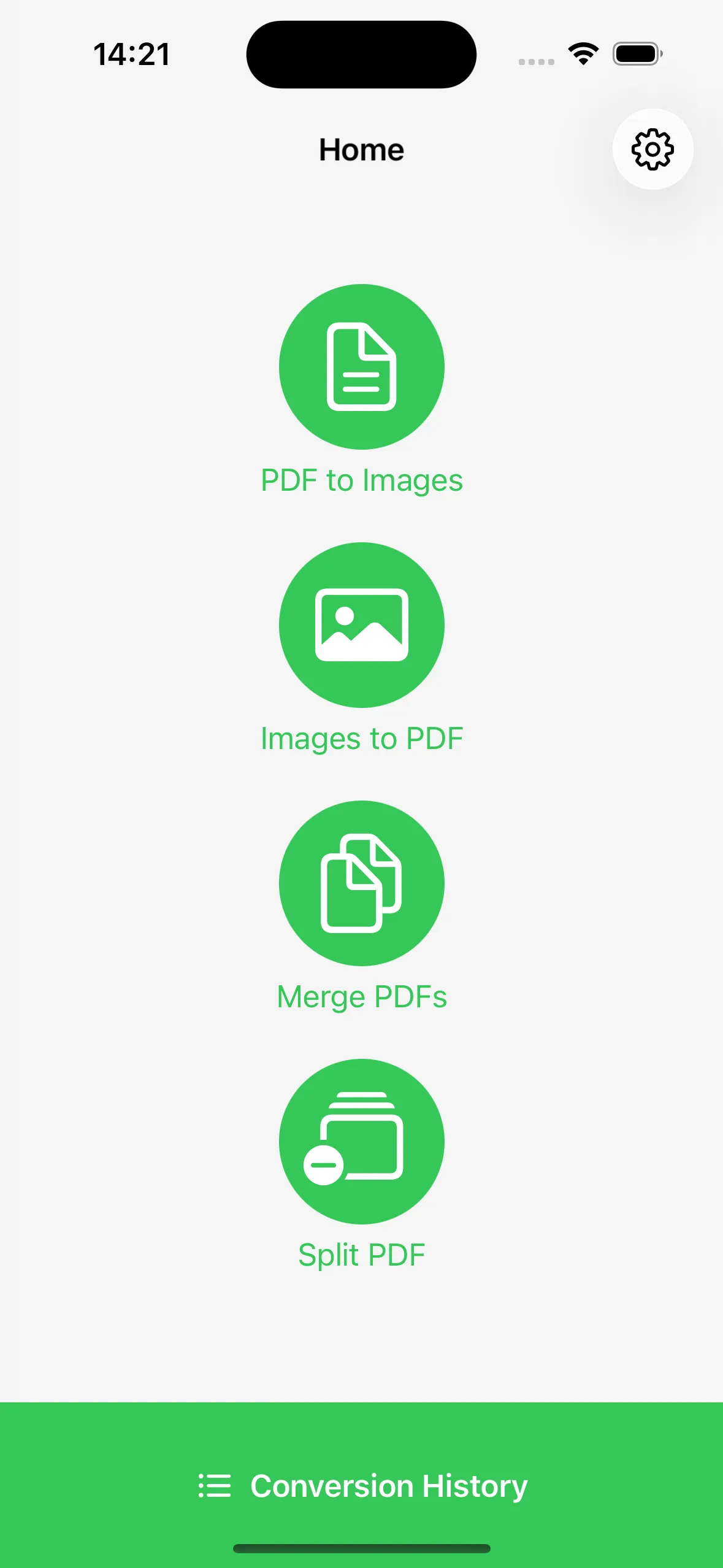
Prefer a native app? Imgs2PDF handles image↔PDF conversion, merge, split, and compress on iPhone, iPad, and Mac.
Browser tool
Files stay in this browser tab. Nothing is uploaded.
Drop a PDF here, or click to browse
PDF only · processed on this device
Ready when you are. Choose a multi-page PDF to extract pages or ranges.
Turn a multi-page PDF into one file per page. Useful when each page needs its own attachment or archive entry.
Keep chapters or sections together. Enter groups like 1-3, 5, 8-10 and download each group as its own PDF.
Split into equal bundles — every 2, 5, or 10 pages — when email limits or upload caps require smaller files.
This page runs the split in your browser with pdf-lib. The PDF is read locally, pages are copied into new documents, and downloads are generated as object URLs on your device.
Imgs2PDF is the HP60 Studio native app for image↔PDF conversion, batch merge, split, compress, page orientation, and quality controls on iPhone, iPad, and Mac — also 100% offline.
No. The splitter reads the PDF in this browser tab and builds new PDFs locally. Nothing is uploaded for the split itself.
Split every page into its own file, define custom page ranges, or break the document into fixed-size chunks (every N pages).
This page focuses on splitting. For image-to-PDF, PDF-to-image, merge, and compress on device, use Imgs2PDF from the App Store.
Password-protected PDFs cannot be opened by this browser tool. Remove the password in another app first, or use a native PDF utility that supports encrypted files.
Open the tool above, drop in a file, and download the parts you need.
Back to the splitter